FUOTA deployment with ChirpStack
Overview
YOBIIQ devices update their firmware over the air with the LoRa Alliance FUOTA application layer packages. The stack behavior is specified in the Firmware Updates Over The Air (FUOTA) section of the YOBIIQ LoRaWAN Stack Information guide.
This guide explains:
- How a FUOTA update works on the device.
- The fragmentation limits of the device, and how to plan a deployment with them.
- How to run the campaign on ChirpStack, step by step.
How a FUOTA update works on the device
The FUOTA process on the device includes:
- Storing each received fragment in the firmware update storage area of the device.
- Rebuilding lost fragments from the redundant fragments (forward error correction). A rebuilt fragment replaces the lost one, so redundancy uses no extra storage.
- When the image is complete, ending the multicast session, resuming uplinks and reporting the image status on fPort 203 (FMP
DevUpgradeImageAns, confirmed uplink, 3 attempts):04 03 <version u32 LE>: valid image received, with its firmware version.04 01: invalid or incomplete image (the received image is discarded).
- 60 seconds after a valid image is received, restarting the device to install it.
Upon restart, the bootloader:
- Checks the signature of the new firmware image.
- Installs the new firmware and keeps the previous firmware as a backup.
- Starts the new firmware, which confirms itself at its first start. If the new firmware fails to start, the device goes back to the previous firmware.
Note: The installation is not immediate: the device waits 60 seconds after the image is complete, so the status report on fPort 203 can be sent first. The network server can also manage the image through the Firmware Management Protocol (fPort 203).
Note: The file to send is the signed firmware image (
.bin) provided by YOBIIQ.
FUOTA protocol versions
-
FUOTA V1 (used by the devices, fully operational) This refers to:
- Application Layer Clock Synchronization (TS003)
v1.0.0, fPort 202 - Fragmented Data Block Transport (TS004)
v1.0.0, fPort 201 - Remote Multicast Setup (TS005)
v1.0.0, fPort 200 - Firmware Management Protocol (TS006)
v1.0.0, fPort 203
- Application Layer Clock Synchronization (TS003)
-
FUOTA V2 (TS003, TS004 and TS005
v2.0.0) is supported by the stack but not fully tested yet.
The FUOTA service of the network server must use the same package versions as the device: see the Application layer tab of the ChirpStack device profile.
Note: The Remote Multicast GenAppKey is the same as the AppKey used by each end-device (LoRaWAN 1.0.4): see Configure the device keys.
Fragmentation limits
The device supports the following fragmentation limits:
- Maximum number of data fragments:
6912 - Maximum fragment size:
242bytes - Maximum number of lost fragments the device can rebuild:
692(about 10% of the maximum number of data fragments)
Note: Every firmware image provided by YOBIIQ fits in the device storage: the image size only limits the number of fragments.
Fragment size per data rate
A data fragment downlink carries a 3-byte header (command and fragment index), so the fragment size is the maximum application payload of the multicast data rate minus 3. For EU868 (check the regional parameters for other regions):
| Multicast data rate | Max payload | Max fragment size | Airtime per fragment | Max image size with 6912 fragments |
|---|---|---|---|---|
| DR0 to DR2 | 51 bytes | 48 bytes | about 2.8 s (DR0) | 331,776 bytes (324 KB) |
| DR3 | 115 bytes | 112 bytes | about 0.68 s | Any YOBIIQ firmware image |
| DR4 to DR5 | 242 bytes | 239 bytes | about 0.39 s (DR5) | Any YOBIIQ firmware image |
Redundancy limit
The redundancy limit (692) is the maximum number of lost data fragments the device can rebuild from redundant (repair) fragments, using Forward Error Correction (FEC):
- The device can rebuild the image when up to 692 data fragments are lost.
- If more than 692 data fragments are lost, the fragmentation session fails and the device reports an invalid image (
04 01on fPort 203). - Redundant fragments replace the lost data fragments: they do not use extra storage.
- Each lost fragment needs at least one received redundant fragment, usually a few more. Sending more than 692 redundant fragments does not help, since the device cannot rebuild more than 692 lost fragments.
Multicast frequency
Choose a multicast frequency that devices do not use for uplinks. In EU868:
- 869.525 MHz (869525000 Hz, the RX2 frequency, recommended): no uplinks are sent on it and the gateway may transmit 10% of the time.
- Or a free channel in 863 to 868 MHz that is not in the uplink channel plan of your network (and, if possible, of the networks nearby). The gateway may then transmit only 1% of the time, so the session lasts about 10 times longer than on 869.525 MHz.
Recommendations
- Use the largest fragment size the multicast data rate allows: DR5 with 239-byte fragments in EU868 is strongly recommended (see Fragment size per data rate).
- Use 869.525 MHz for multicast (see Multicast frequency).
- Avoid unicast traffic or downlinks that can collide with the multicast FUOTA windows.
Note: The device sends no other uplinks during a multicast session, so it does not miss multicast FUOTA windows. Uplinks resume when the FUOTA session ends.
Deployment planning
To properly configure FUOTA fragmentation, use the following formulas and constraints.
Formulas
Data Fragment Count = ceil(Image Size / Fragment Size)Redundant Fragment Count = ceil(Data Fragment Count × Redundancy %)Total Fragments = Data Fragment Count + Redundant Fragment CountSession Duration = Total Fragments × Airtime per Fragment / Gateway Duty Cycle
The airtime per fragment is given in Fragment size per data rate. The gateway duty cycle is 10% on 869.525 MHz and 1% on the other channels (see Multicast frequency).
Constraints
Fragment Size ≤ 242andFragment Size ≤ max payload of the multicast data rate - 3Data Fragment Count ≤ 6912Lost Fragment Count ≤ 692, so aRedundant Fragment Countabove 692 brings no benefitMulticast Timeout > Session Duration
Redundant fragments do not count toward the storage: only the data fragments are stored.
Multicast timeout
The multicast timeout is the time the devices keep their multicast session open. It must be longer than the whole session, or the devices close the session before the last fragments are sent.
The timeout is a power of 2 in seconds (1, 2, 4, ... 4096, 8192, 16384, 32768). Choose the first value above the session duration:
| Multicast timeout | Duration |
|---|---|
| 4096 seconds | about 1 h 8 min |
| 8192 seconds | about 2 h 16 min |
| 16384 seconds | about 4 h 33 min |
| 32768 seconds | about 9 h 6 min (largest value allowed by Remote Multicast Setup v1.0.0) |
A session longer than 32768 seconds cannot run in one multicast session: use a higher data rate.
Example with DR5 multicast
Updating a DEM4 with the DEM v1.2.0 firmware image (321,955 bytes) with Fragment Size = 239 (EU868 DR5 multicast), 10% redundancy and 869.525 MHz:
Data Fragment Count = ceil(321,955 / 239) = 1348Redundant Fragment Count = ceil(1348 × 0.10) = 135Total Fragments = 1348 + 135 = 1483Session Duration = 1483 × 0.39 s / 10% ≈ 5,850 s(about 1 h 38 min)
Checking constraints:
- Fragment Size:
239 ≤ 242✅ - Data Fragment Count:
1348 ≤ 6912✅ - Up to 135 lost fragments can be rebuilt (
135 ≤ 692) ✅ - Multicast timeout:
8192 s > 5,850 s✅ (4096 seconds would be too short)
These are the values used in the ChirpStack example.
Example with DR0 multicast
The same DEM v1.2.0 image with Fragment Size = 48 (EU868 DR0 to DR2 multicast), 10% redundancy and 869.525 MHz:
Data Fragment Count = ceil(321,955 / 48) = 6708Redundant Fragment Count = ceil(6708 × 0.10) = 671Total Fragments = 6708 + 671 = 7379Session Duration = 7379 × 2.8 s / 10% ≈ 206,000 s(about 57 hours)
Checking constraints:
- Data Fragment Count:
6708 ≤ 6912✅ - Up to 671 lost fragments can be rebuilt (
671 ≤ 692) ✅ - Multicast timeout:
32768 s < 206,000 s❌
→ This image cannot be sent at DR0: the session is longer than the largest multicast timeout. It is also close to the fragment limits: an image larger than 331,776 bytes (324 KB) needs more than 6912 fragments at 48 bytes, and a redundancy above 10% brings no benefit at 48 bytes.
Note: Choose parameters that balance reliability (redundancy %) with the fragment limits and airtime: at DR0 the session sends about 5 times more fragments than at DR5, each with about 7 times the airtime, so DR5 is strongly recommended.
Deploying FUOTA with ChirpStack
The screenshots in this section come from ChirpStack v4.16.2 and a DEM4 updated to firmware v1.2.0.
Before you start
You need:
- The signed firmware image (
.bin) provided by YOBIIQ for your product. - Your devices joined (OTAA) in one ChirpStack application, all with the same device profile.
- A gateway able to transmit Class C downlinks on the multicast frequency.
- Your deployment plan: data rate, fragment size, redundancy and multicast timeout.
- The firmware version running on your devices (see Check the full firmware version).
Configure the device profile
Configure the device profile used by the devices to update. The screenshots show the DEMx device profile used for DEM1, DEM2 and DEM4 devices.
General tab
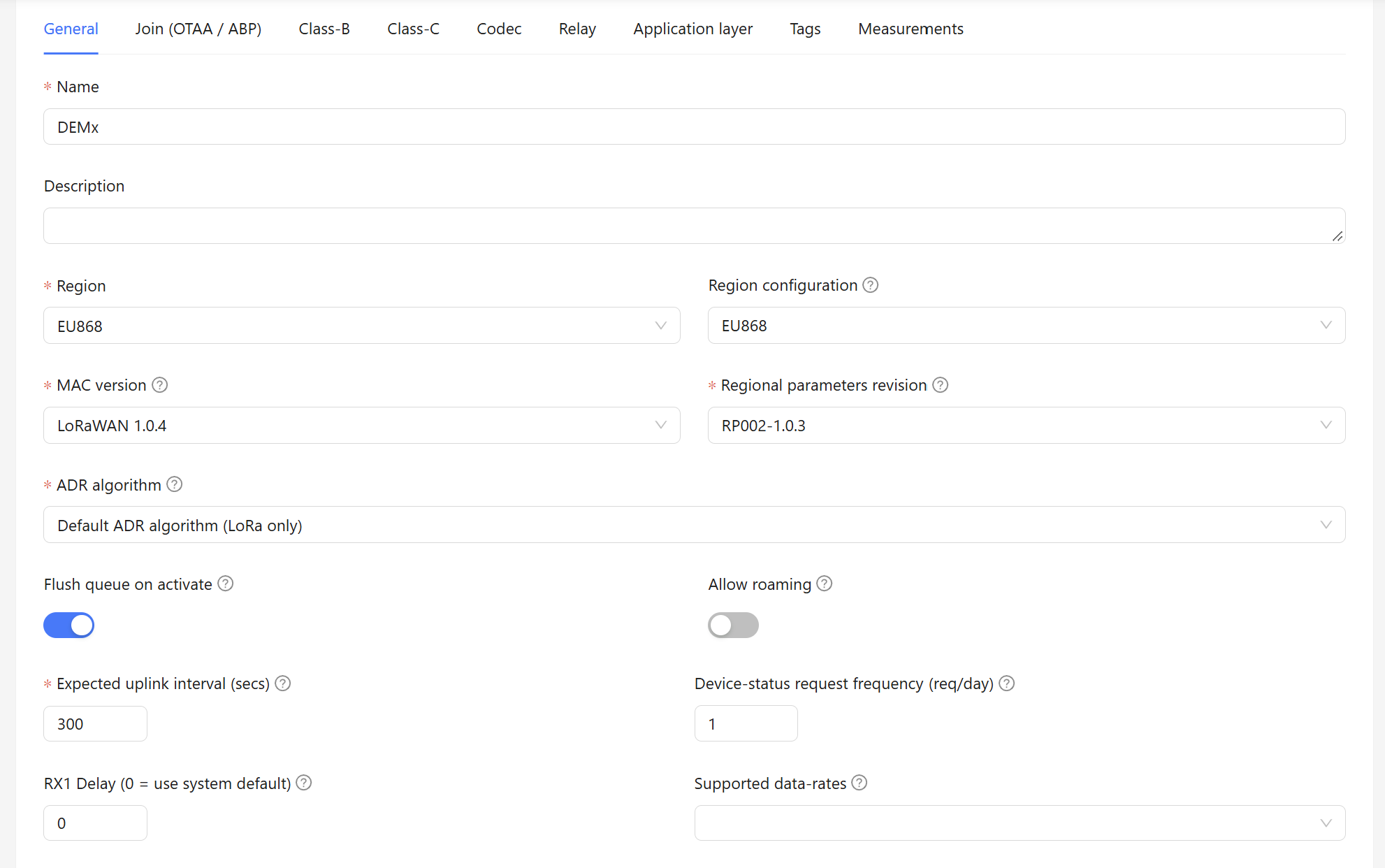
- MAC version:
LoRaWAN 1.0.4 - Regional parameters revision:
RP002-1.0.3 - Expected uplink interval (secs): the uplink interval configured on your devices (300 seconds, 5 minutes, in this screenshot).
The expected uplink interval matters for the FUOTA session setup: ChirpStack uses it while it sets up each device. Devices with an uplink interval of a few minutes are set up quickly.
Class-C tab
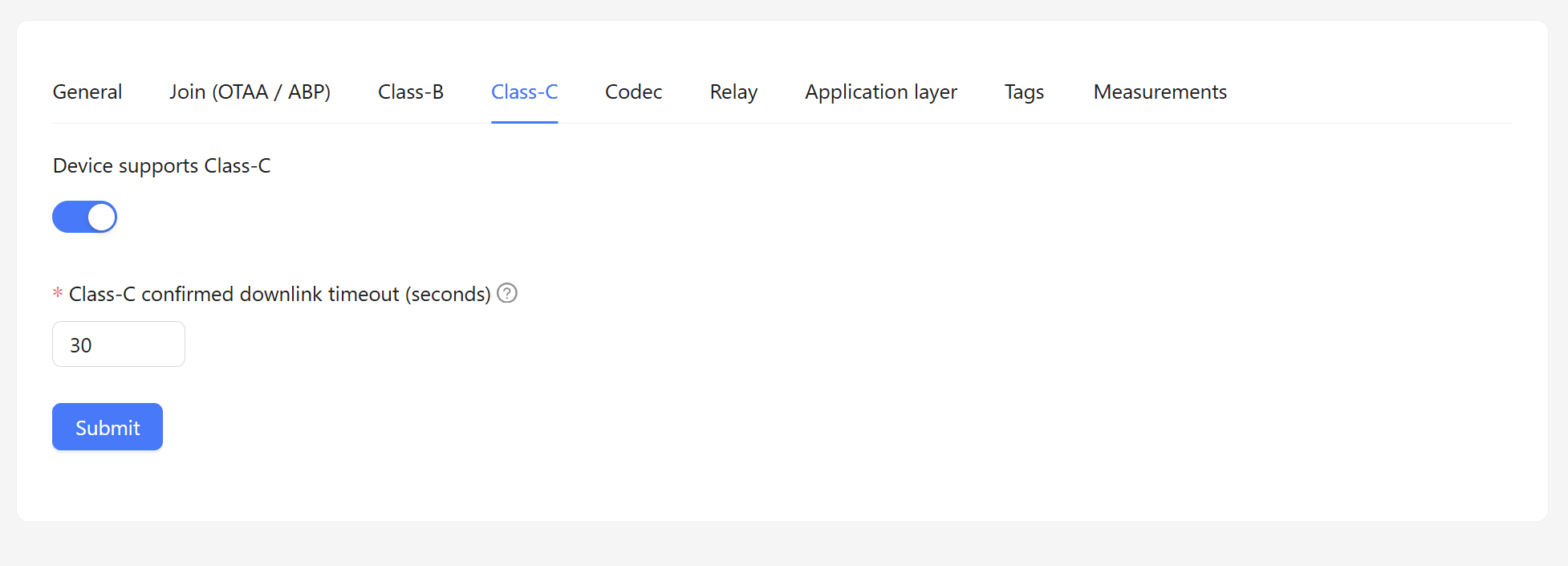
- Device supports Class-C: enabled
- Class-C confirmed downlink timeout (seconds):
30. Do not set0.
Codec tab
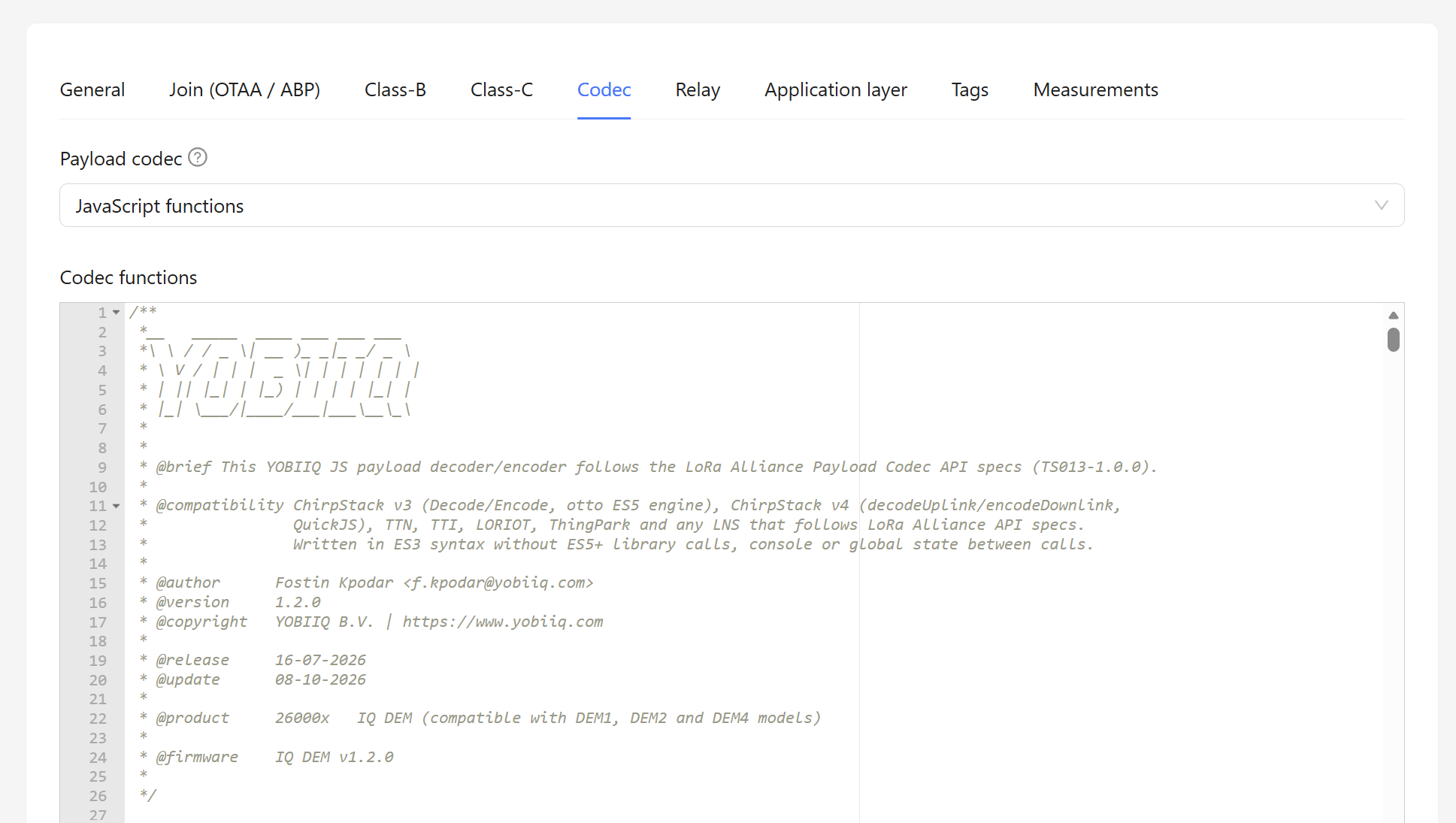
- Payload codec:
JavaScript functions, with the codec provided by YOBIIQ for your product, available in the YOBIIQ decoder repository (see also LoRaWAN integration resources). The screenshot shows the IQ DEM codec v1.2.0.
The YOBIIQ codec decodes the FUOTA status report on fPort 203 (see How a FUOTA update works on the device).
Application layer tab
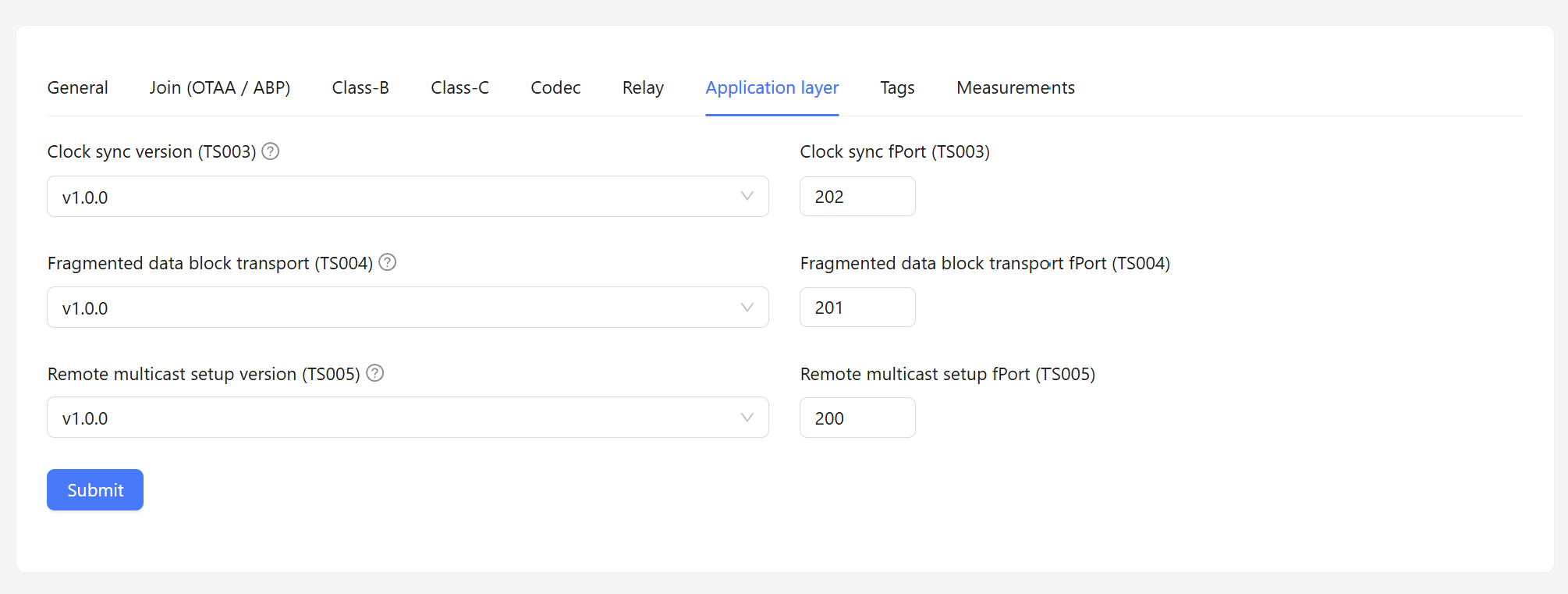
Set the FUOTA V1 packages:
- Clock sync version (TS003):
v1.0.0, fPort202 - Fragmented data block transport (TS004):
v1.0.0, fPort201 - Remote multicast setup version (TS005):
v1.0.0, fPort200
Note: In the Join (OTAA / ABP) tab, always enable OTAA. YOBIIQ devices do not support ABP.
Configure the device keys
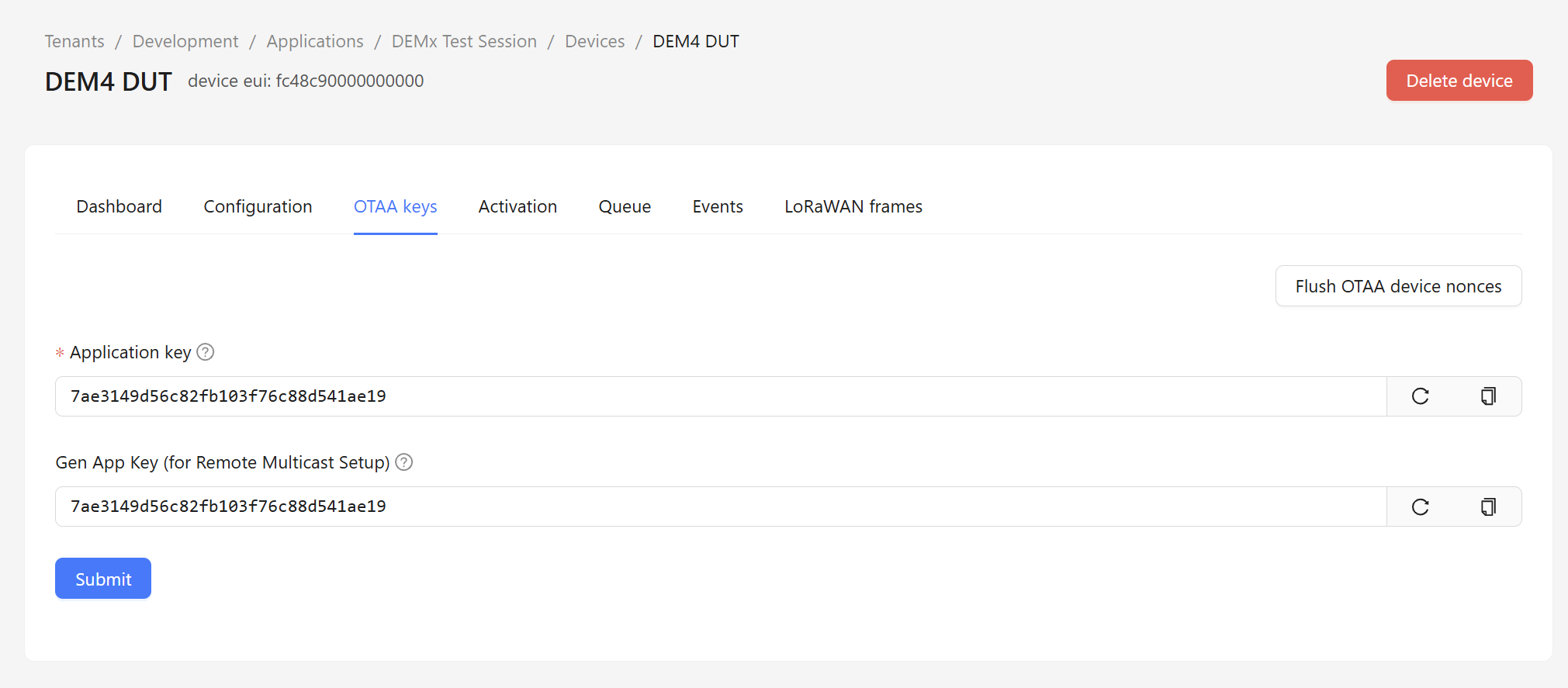
For each device, open its OTAA keys tab (DEM4 device in this screenshot):
- Gen App Key (for Remote Multicast Setup): set the same key as the Application key.
Note: The Remote Multicast GenAppKey is the same as the AppKey used by each YOBIIQ end-device (LoRaWAN 1.0.4). With another Gen App Key, the device cannot decrypt the multicast session keys and the FUOTA session does not start.
Create the FUOTA deployment
A FUOTA deployment belongs to a ChirpStack application. In your application, open the FUOTA tab and click New FUOTA deployment.
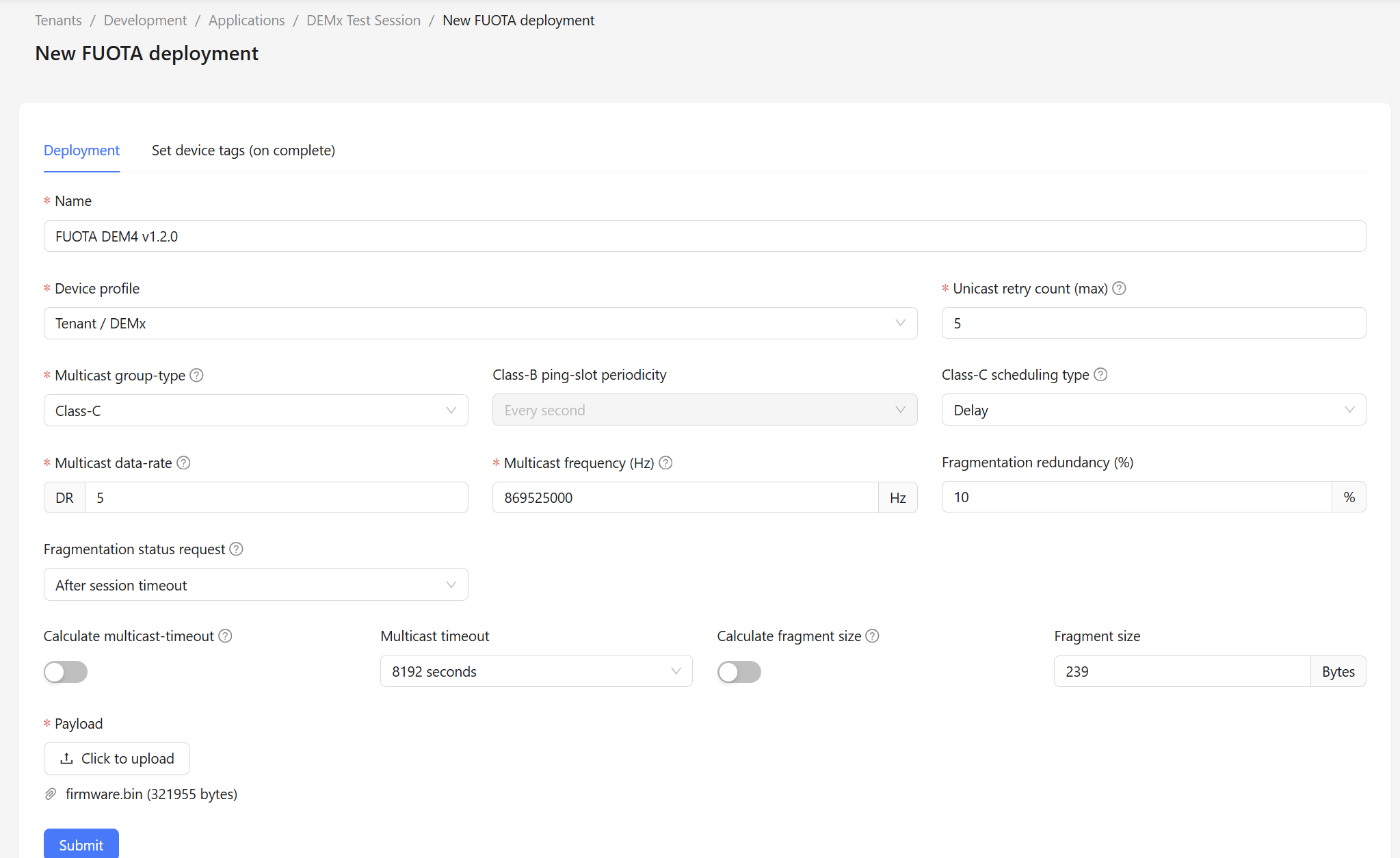
| Field | Value in the example | Recommendation |
|---|---|---|
| Name | FUOTA DEM4 v1.2.0 | A name that identifies the product and the firmware version. |
| Device profile | DEMx | The device profile configured above. |
| Unicast retry count (max) | 5 | Maximum number of unicast retries for each device during the FUOTA session setup. Do not set 0. |
| Multicast group-type | Class-C | Class C, recommended for mains-powered devices. |
| Class-C scheduling type | Delay | The value used in the YOBIIQ test campaign. |
| Multicast data-rate | 5 | DR5, strongly recommended (see Fragment size per data rate). |
| Multicast frequency (Hz) | 869525000 | 869.525 MHz, recommended (see Multicast frequency). |
| Fragmentation redundancy (%) | 10 | 10%, recommended (see Redundancy limit). |
| Fragmentation status request | After session timeout | Recommended for Class C devices. |
| Calculate multicast-timeout | Disabled | We recommend disabling it and setting the multicast timeout manually. Enable it only if you do not know the session duration. |
| Multicast timeout | 8192 seconds (about 2 h 16 min) | Always longer than the session duration (see Multicast timeout). |
| Calculate fragment size | Disabled | We recommend disabling it and setting the fragment size manually. |
| Fragment size | 239 bytes | The largest fragment size of the multicast data rate: 239 bytes at DR5 (see Fragment size per data rate). |
| Payload | firmware.bin (321955 bytes) | The signed firmware image provided by YOBIIQ. |
Click Submit to create the deployment.
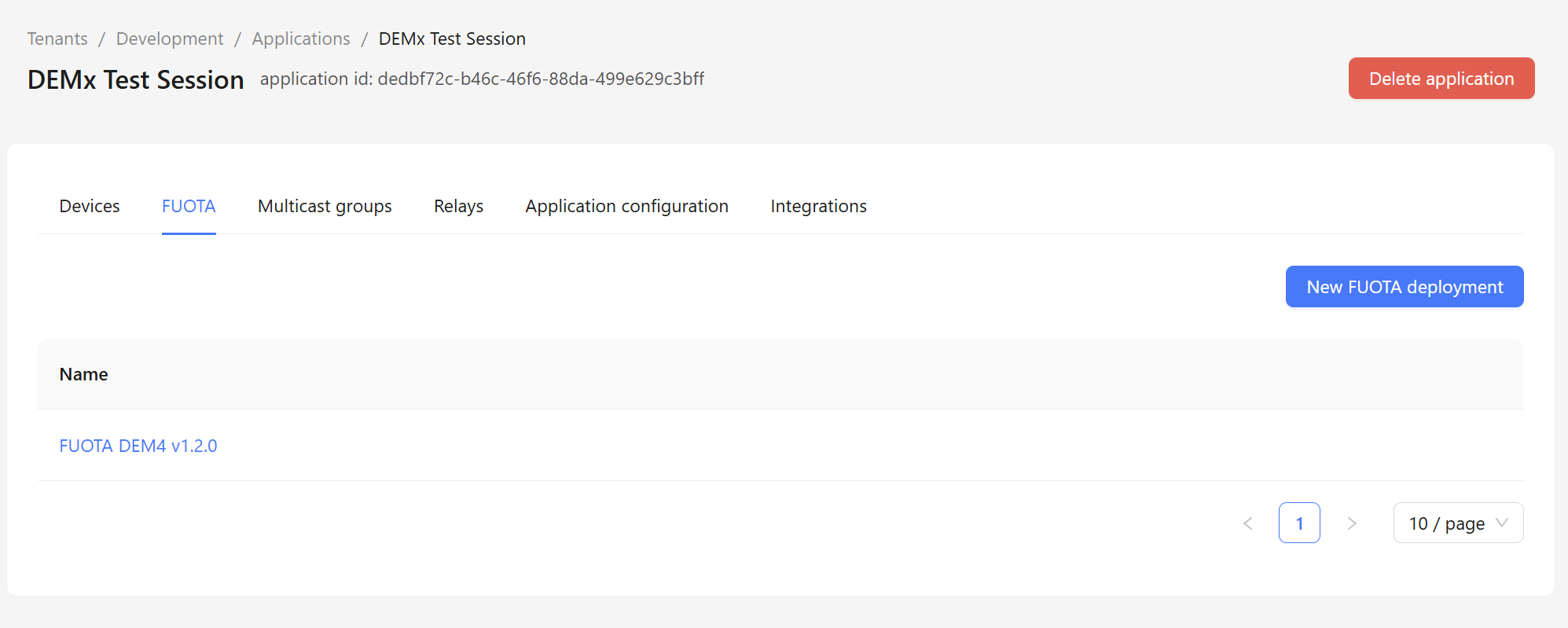
The new deployment is listed in the FUOTA tab of your application. Until it is started, you can open it to edit its configuration.
Add devices to the deployment
-
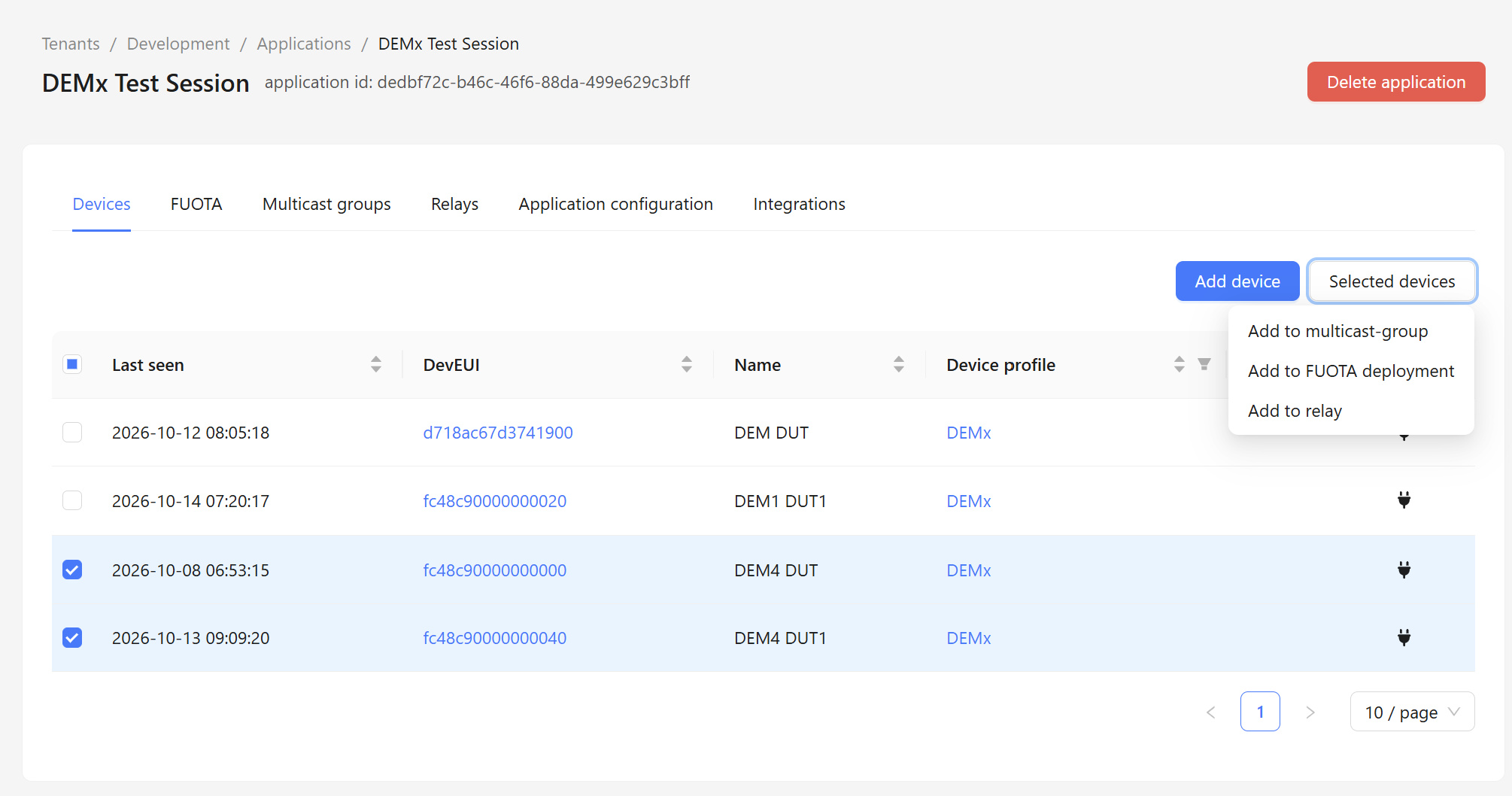
Open the Devices tab of your application.
-
Select the devices to update.
-
Click Selected devices, then Add to FUOTA deployment.
-
Choose your FUOTA deployment in the popup and click OK.
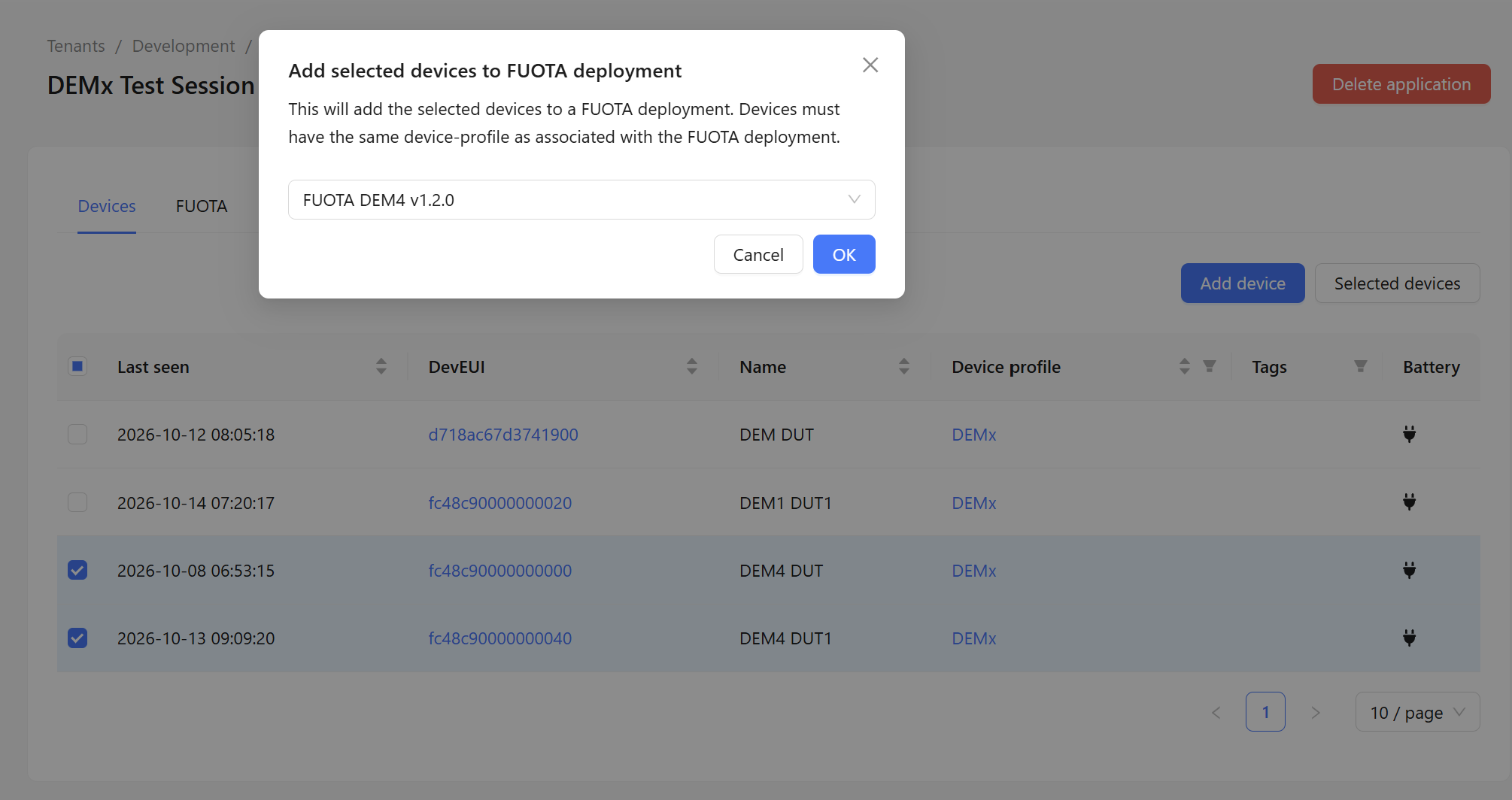
The devices must use the device profile of the FUOTA deployment.
Note: You can also add gateways to the FUOTA deployment. If none is added, ChirpStack automatically uses the right gateways.
Review the deployment
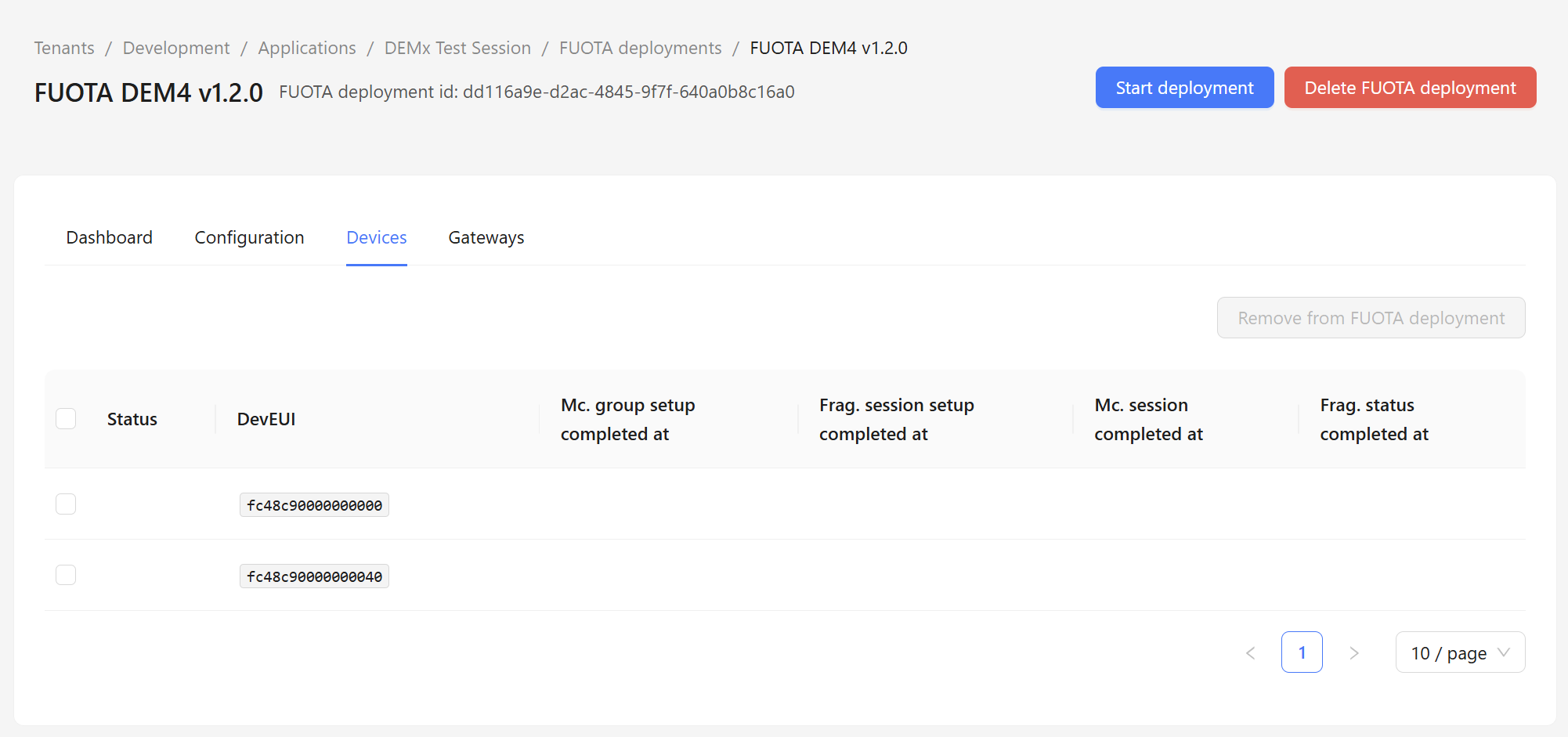
- In the FUOTA tab of your application, click your FUOTA deployment to open its details.
- In the Devices tab, check the added devices. The status of each device is refreshed during the FUOTA campaign.
- In the Configuration tab, check the FUOTA deployment configuration once more before starting it.
Note: Once started, the FUOTA deployment cannot be edited. The Dashboard tab shows the general state of the FUOTA campaign, and the Devices tab shows the state of each device.
Start the deployment
Before starting the FUOTA campaign, make sure that the devices are online and send uplinks at the expected uplink interval set in the General tab of their device profile.
Click Start deployment to start the FUOTA campaign.
During the campaign, the Devices tab of the deployment shows when each step is completed for each device: multicast group setup, fragmentation session setup, multicast session and fragmentation status.
When a device has received the whole image, it reports the result on fPort 203 and restarts 60 seconds later to install the new firmware (see How a FUOTA update works on the device). After the restart, check the new firmware version of each device (see Check the full firmware version).
Check the full firmware version
The Firmware Version register 0xFF69 only holds the major and minor version (for example 1.2). To read the full version (major.minor.patch, for example 1.2.0), send the Firmware Management Protocol command DevVersionReq on fPort 203. Use it before the campaign to check the running firmware, and after the campaign to confirm the update.
Send the request
In ChirpStack, open the device, go to its Queue tab and enqueue a downlink:
| Field | Value |
|---|---|
| FPort | 203 |
| Payload (HEX) | 01 (AQ== in Base64) |
| Confirmed | Not needed |
A Class C device receives the downlink right away. A Class A device receives it after its next uplink.
Note: Send the request as a unicast downlink to each device. The device ignores Firmware Management Protocol commands received in a multicast session.
Read the answer
Within a few seconds of the request, the device sends DevVersionAns on fPort 203 (unconfirmed uplink, 9 bytes):
| Byte | Content |
|---|---|
| 0 | 01: DevVersionAns command |
| 1 to 2 | Firmware patch version, u16 little endian |
| 3 | Firmware minor version |
| 4 | Firmware major version |
| 5 to 6 | Hardware patch version, u16 little endian (always 0) |
| 7 | Hardware minor version |
| 8 | Hardware major version |
Example with firmware v1.2.0 on hardware v1.0:
01 0000 02 01 0000 00 01
// 01         -> DevVersionAns
// 0000 02 01 -> Firmware version 1.2.0
// 0000 00 01 -> Hardware version 1.0.0
The YOBIIQ codec (see Codec tab) decodes the answer as follows (other fields of the decoded uplink left out):
{
  "fmpDevVersionAns": {
    "firmware": { "major": 1, "minor": 2, "revision": 0, "version": "v1.2.0" },
    "hardware": { "major": 1, "minor": 0, "revision": 0, "version": "v1.0.0" }
  }
}