EM4302T-LRW with Cloud Studio IoT
Monitor three-phase electricity consumption remotely with a Yobiiq EM4302T-LRW meter and a Cloud Studio IoT dashboard. The Things Stack delivers the meter’s LoRaWAN readings to Gear Studio through a webhook.
EM4302T-LRW → LoRaWAN gateway → The Things Stack → Gear Studio
Energy monitoring at the Tárraco Necropolis
Cloud Studio IoT used the EM4302T-LRW to monitor the engine hall during the restoration of the Tárraco Necropolis in Tarragona, Spain. A second meter monitored the main incoming supply, giving the team a way to compare the engine hall's consumption with the site's overall usage. Cloud Studio IoT case study
The engine hall dashboard shows total active and apparent power, accumulated active energy, and voltage, current and power by phase. Trend charts and hourly records let the team compare how those measurements change over time.
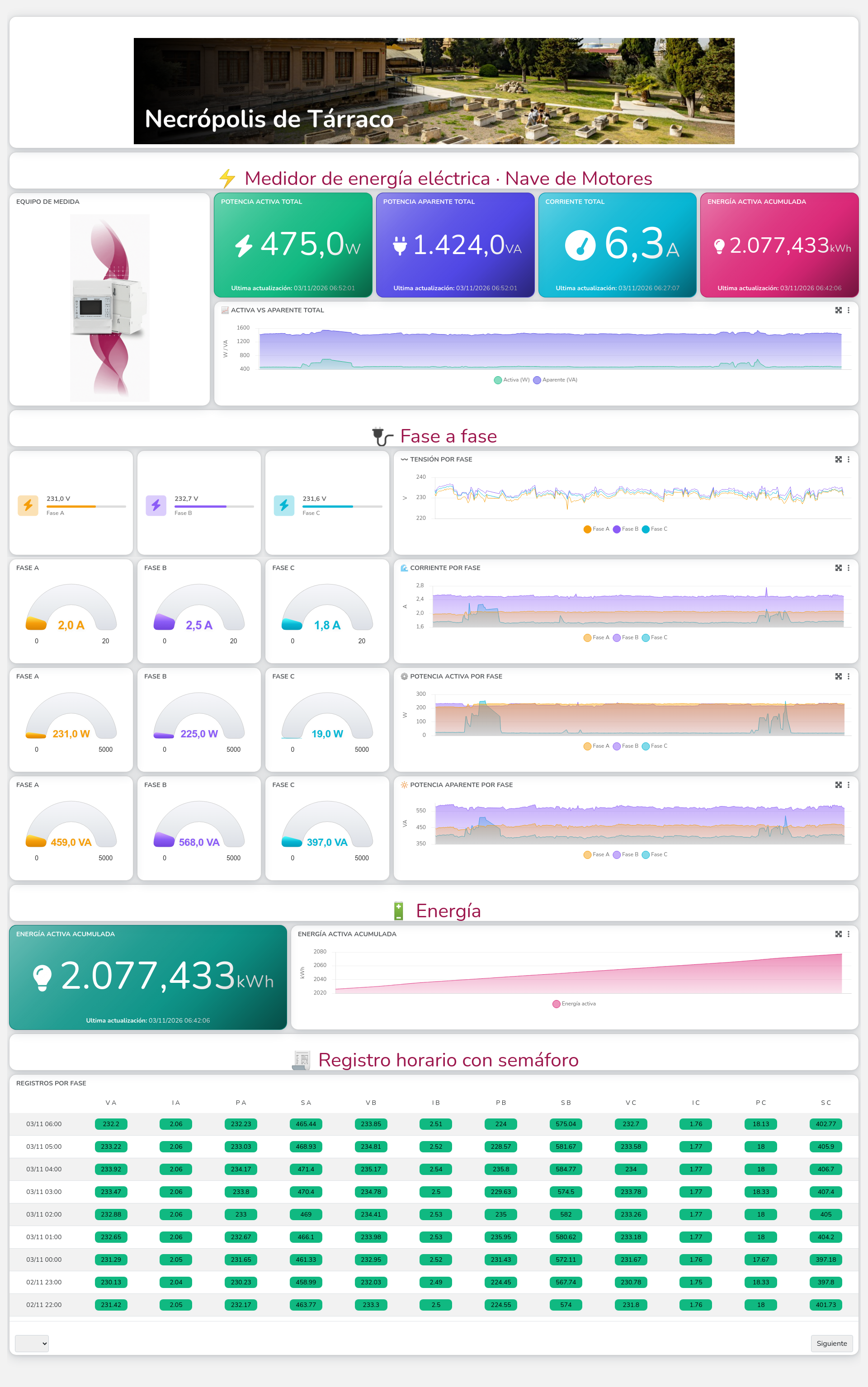
Dashboard screenshot provided by Cloud Studio IoT.
Connect your meter
- Register the EM4302T-LRW in The Things Stack. Use the meter's OTAA details and the frequency plan for your installation. Confirm the device joins and sends a measurement in Live data. EM4302T-LRW manual
- Add the meter in Gear Studio. Select The Things Network (TTN) as the communication interface and enter the same DevEUI. Use a device model and payload parser that match your meter firmware. If the parser expects decoded JSON, configure an uplink formatter in The Things Stack and check that its values match the meter. Cloud Studio device setup · Yobiiq EM4302 legacy codec
- Add the webhook in The Things Stack. In the application, open Integrations → Webhooks → Add webhook and select Cloud Studio IoT. Enter your Gear Studio instance hostname and a dedicated token with permission to update device data. Save the webhook and confirm the next measurement appears in Gear Studio. Cloud Studio webhook setup
- Build the dashboard. Bind widgets to the meter's variables and check the units and phase labels against a decoded reading. For example, if your decoder reports current in mA and the widget displays A, divide the value by 1,000. Gear Studio dashboard setup